
Silk Mobile
Table of Contents (Homepage)
- Overview
- Setting Up
- Getting Started
- How To
- Connecting Devices And Emulators
- Preparing Applications For Testing
- Managing Applications
- Recording Tests
- Working With Test Commands
- Adding Commands To Your Scripts
- Object Commands
- Click
- ClickCoordinate
- ClickIn
- ClickOffset
- Drag
- ElementGetProperty
- ElementGetTableRowsCount
- ElementListPick
- ElementListSelect
- ElementListVisible
- ElementScrollToTableRow
- ElementSendText
- ElementSetProperty
- ElementSwipe
- ElementSwipeWhileNotFound
- GetAllValues
- GetElementCount
- GetElementCountIn
- GetTextIn
- IsElementBlank
- IsElementFound
- IsFoundIn
- LongClick
- RunNativeAPICall
- SendWhileNotFound
- VerifyElementFound
- VerifyElementNotFound
- VerifyIn
- WaitForElement
- WaitForElementToVanish
- GetCoordinateColor
- DragDrop
- Application Commands
- Device Commands
- Web (Hybrid) Specific Commands
- Utilities Commands
- Monitoring Commands
- Configuration Commands
- ExtractLanguageFiles
- SetDefaultClickDownTime
- SetDefaultTimeOut
- SetDefaultWebView
- SetDragStartDelay
- SetInKeyDelay
- SetKeyToKeyDelay
- SetLanguage
- SetLanguagePropertiesFile
- SetShowImageInReport
- SetShowPassImageInReport
- SetShowReport
- SetSpeed
- SetThrowExceptionOnFail
- SetWebAutoScroll
- StartStepsGroup
- StopStepsGroup
- TextFilter
- Miscellaneous Commands
- Controlling Element Identification Rules
- Editing Test Objects
- Executing Test Scripts
- Report Of Executed Test
- Working From Code Environment
- Continuous Integration
- Layout Verification Tests
- Use Device Vitals Monitors
- Troubleshooting
- Terminology
Native Recognition Properties
User can used this recognition method in the following ways:
-
After application preparation: Preparing Native/Hybrid Applications for Testing
-
Using non instrumented mode: Non-Instrumented Native Recognition
-
Using the object spy mode: Using the Reflection's Control Buttons
User can get the Native properties of all objects on the screen
Example
We will show how to use native recognition while using the Eri-bank Instrumented demo application.
Step 1: After login into the application, you will have the Hybrid page in the application.
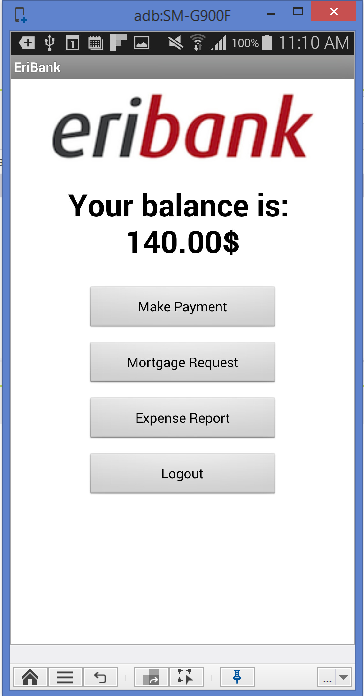
Step 2: Click on the 'object spy' button at the bottom of the device reflection.
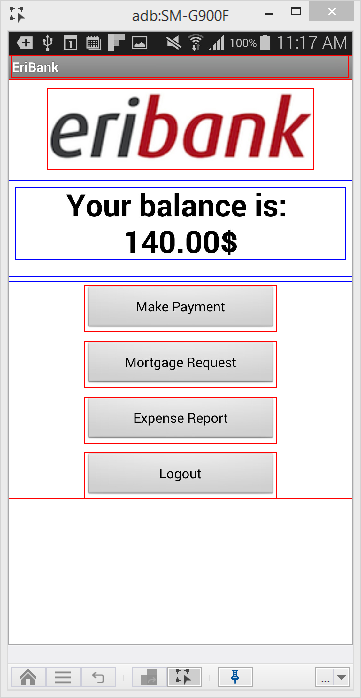
Step 3: Native elements are identified with the red color on object spy mode.
By marking one of such elements, you can get its native properties.
-
Click the “Make Payment”
-
Right Click on the "Make Payment" element.
-
Click on the 'Extract Object'.
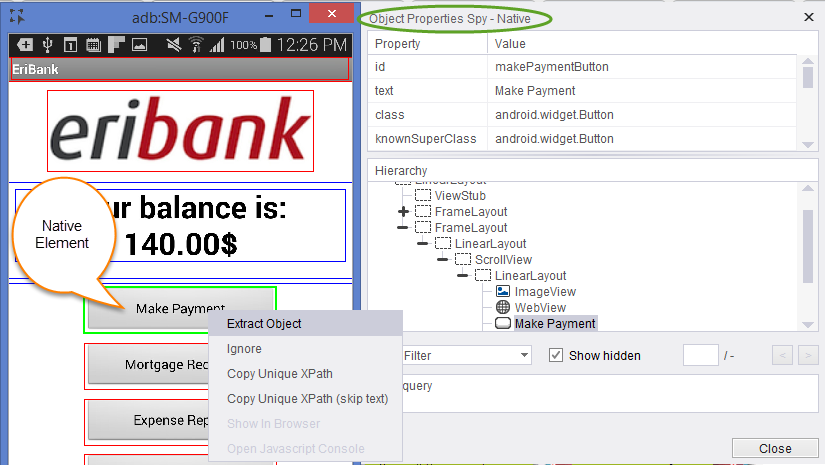
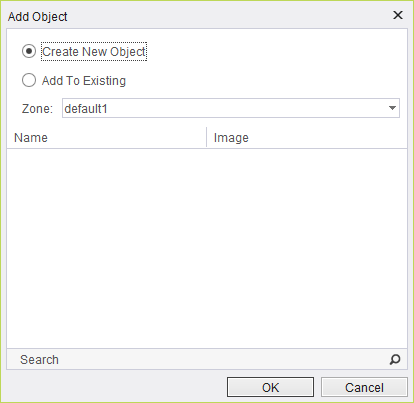
A pop-up will generate in which you need to choose from the following values:
-
Create New Object: Regular extraction.
-
Add to Existing: Add the element's property to an existing element.
In the element property, you will see the 4 tabs, click on the Native tab, you will see 'Enable' checkbox ticked and the element's native properties are written in the field below:
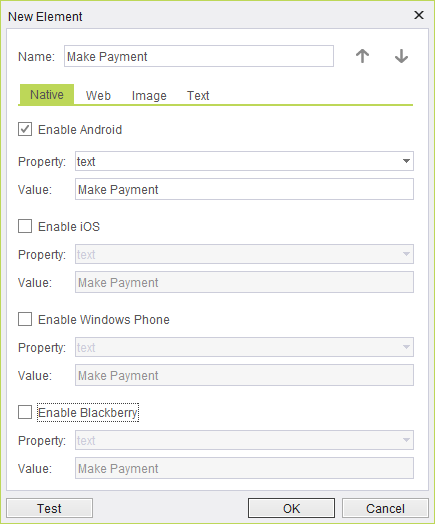
You can also add other OS Native properties for the same element in order to identify it on more than one OS.